Two-Factor Authentication (2FA) Now Available For Added Security
By Lantern Finance
Two-Factor Authentication (2FA) is now live on Lantern Finance.
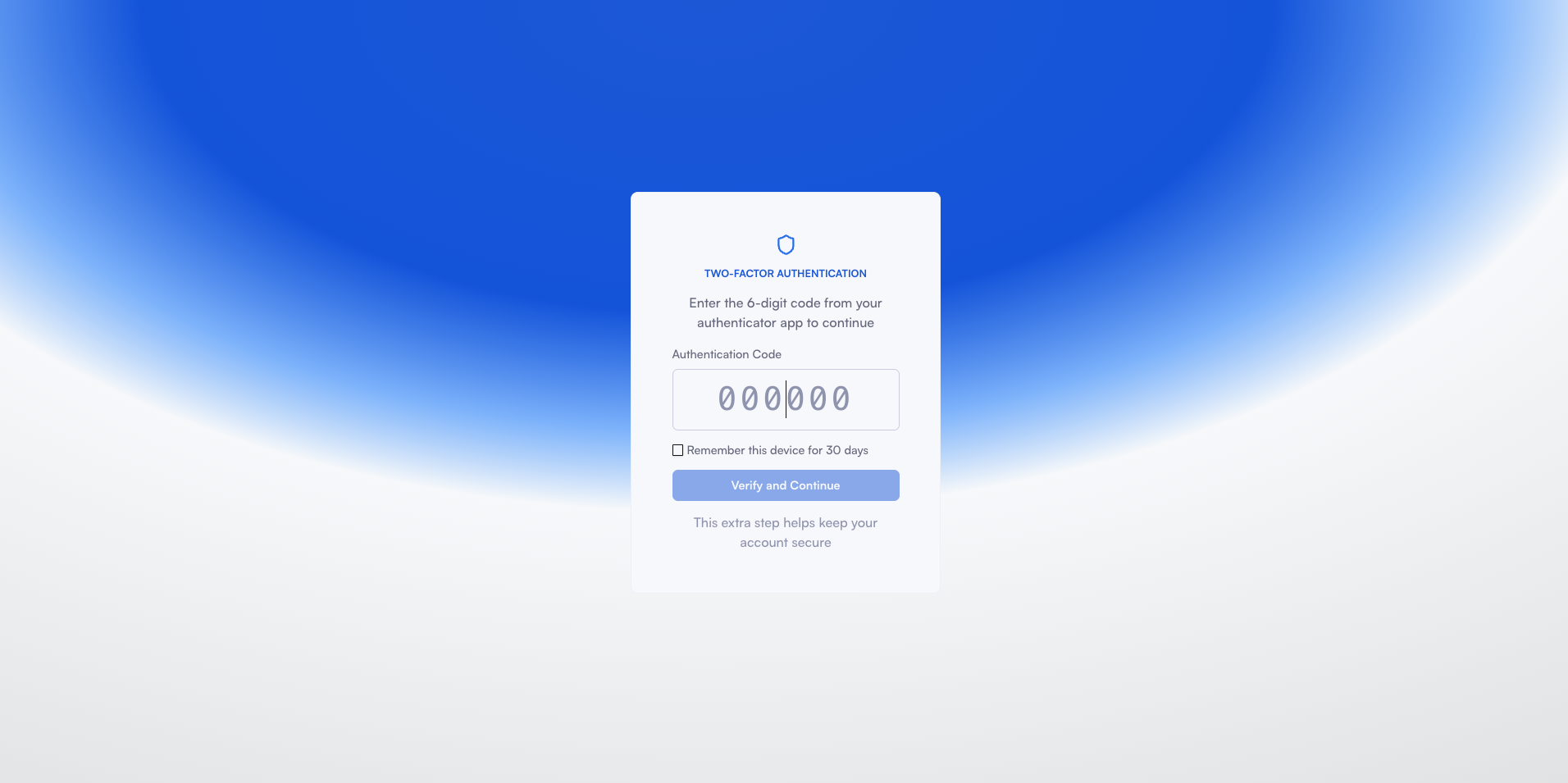
Two-Factor Authentication adds an extra layer of security by requiring a time-based code from your phone's authenticator app in addition to your login credentials.
With 2FA enabled, even if someone obtains your password, they won't be able to access your account or withdraw funds without the constantly changing code from your authenticator app.
Why Enable 2FA?
Protect your withdrawals: Every withdrawal requires 2FA verification
Secure your account access: Add an extra barrier against unauthorized logins
Peace of mind: Know that your crypto is protected by industry-standard security
Control and flexibility: Enable or disable 2FA anytime in your settings
How to Set Up 2FA
Setting up Two-Factor Authentication takes just a few minutes:
Step 1: Navigate to Settings
Log in to your Lantern dashboard and click on your profile. Select "Settings" from the menu.
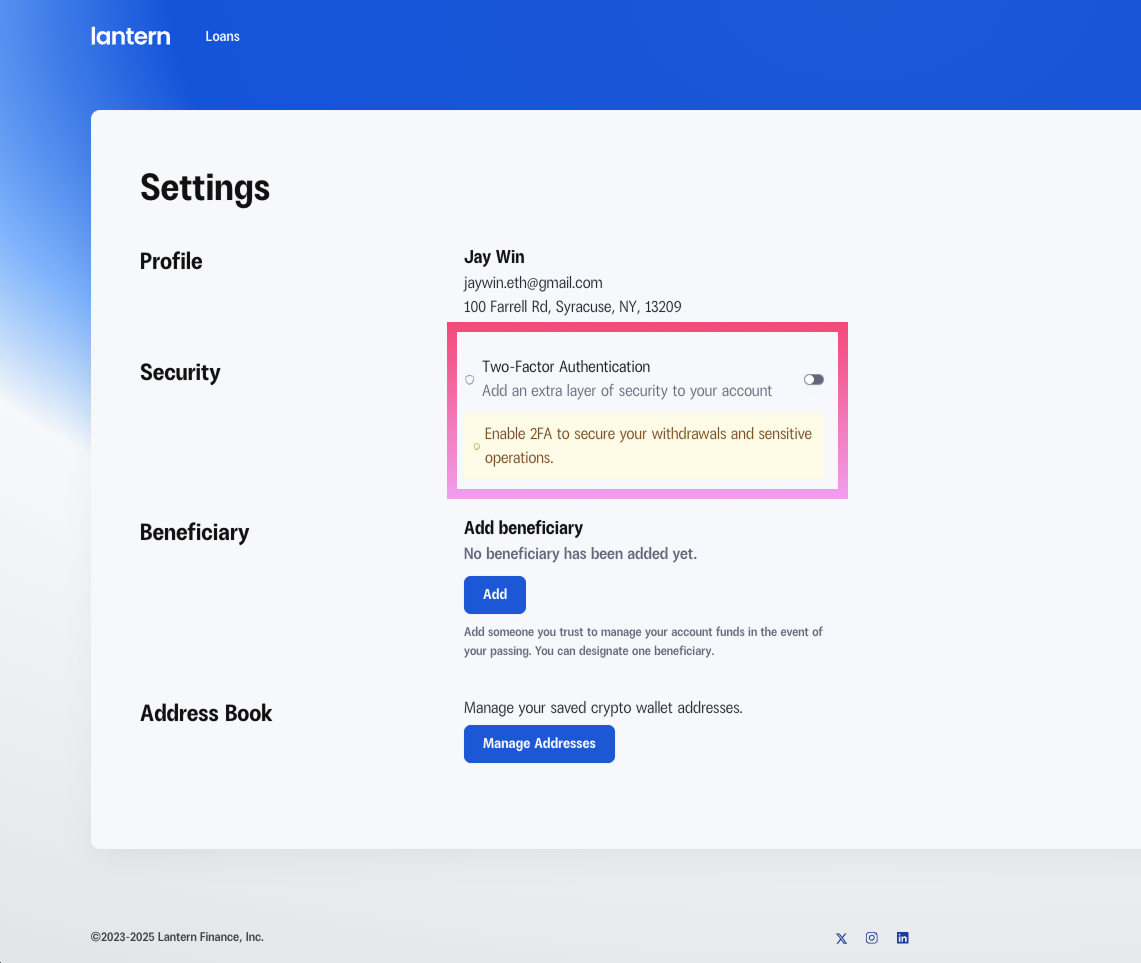
Step 2: Enable Two-Factor Authentication
In the Security section, you'll see the "Two-Factor Authentication" option. Toggle the switch to enable it.
You'll see a message: "Enable 2FA to secure your withdrawals and sensitive operations."
Step 3: Scan the QR Code
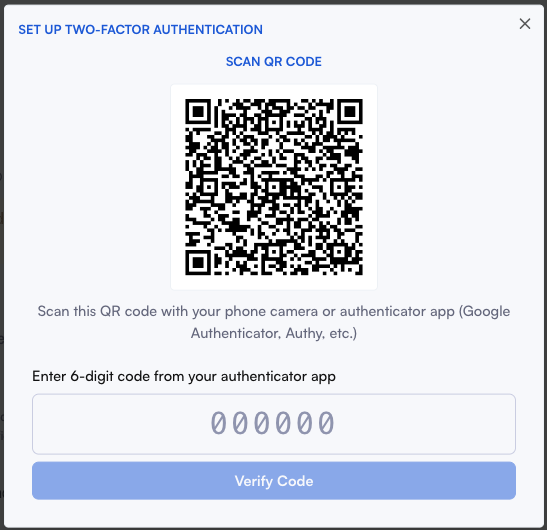
A setup modal will appear with a QR code. Use your authenticator app to scan it:
Compatible authenticator apps include:
Google Authenticator
Authy
Microsoft Authenticator
1Password
Any TOTP-compatible authenticator
Simply open your authenticator app, tap "Add Account" or the "+" button, and scan the QR code displayed on your screen.
Step 4: Enter Your Verification Code
Once you've scanned the QR code, your authenticator app will display a 6-digit code. Enter this code in the verification field and click "Verify Code".
Step 5: You're Protected!
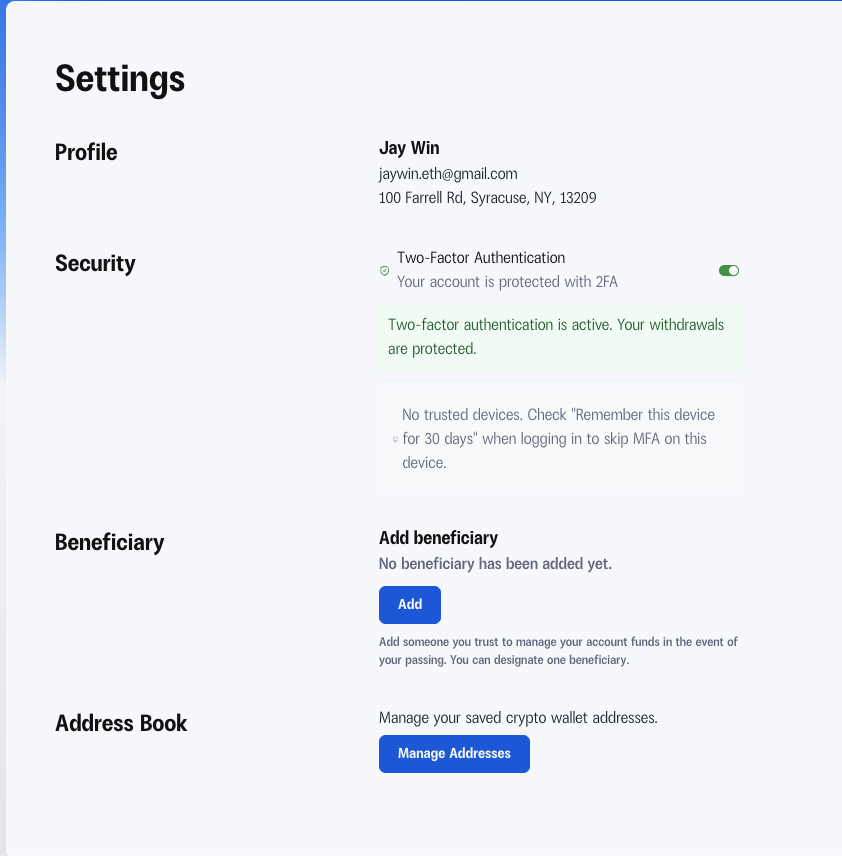
Once verified, you'll see a green checkmark next to "Your account is protected with 2FA" in your Settings.
That’s it!
Enabling Trusted Devices
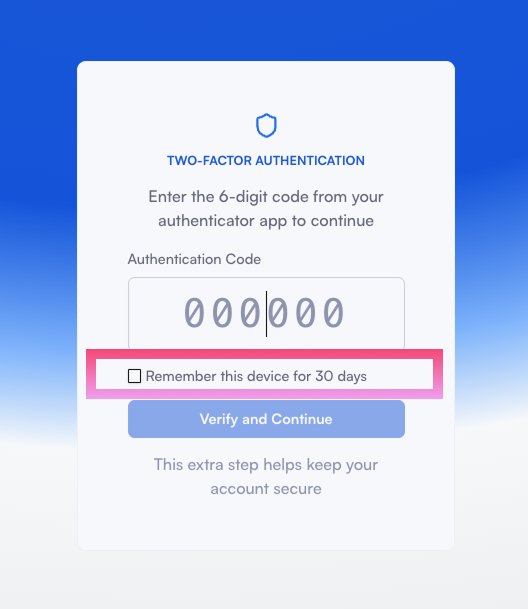
Next time, when you log in using a trusted device, click on the checkmark to remember the device for 30 days.
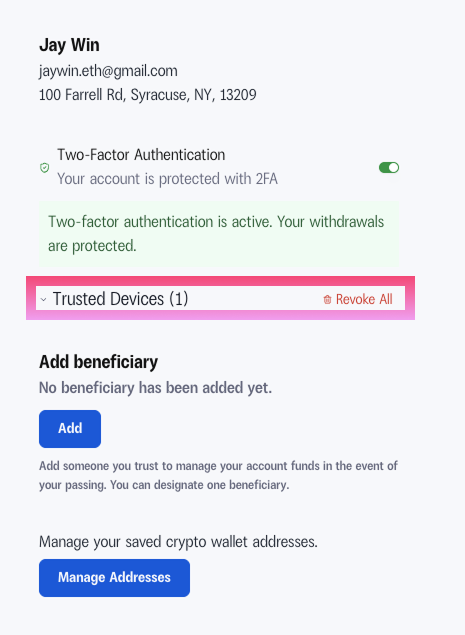
If any of your devices are compromised, do click into your settings to revoke permissions:
Enabling 2FA is a simple step that significantly enhances your account security.
We recommend that all users enable it today.