How Trading & Custody Works On Lantern
By Lantern Finance
Lantern now supports trading and custody directly inside the platform. Users can buy, sell, hold, and move crypto or USD between their trading balance and loan account.
This guide explains what is supported, how custody works, and how to use the main features inside Lantern Trading & Custody.
Table of Contents
How to Get Started
What You Can Do With Lantern Trading
Supported Assets at Launch
How Custody Works
Trading Fees and Limits
How to Buy Crypto
How to Sell Crypto
How to Deposit Crypto
How to Deposit Cash
How to Use USD Toward Loan Payments
How to Move Funds Between Trading and Loans
How to Receive Loan Proceeds Into Your Trading Balance
Support and Feedback
Important Disclosures
1. How to Get Started
Existing Lantern users:
Existing Lantern users will automatically get access to trading.
Review and agree to any required additional trading and custody terms when prompted.
New Lantern users:
Create a Lantern account.
Complete Lantern’s standard KYC process.
Review and agree to the additional trading and custody terms.
Once enabled, access trading from the Lantern dashboard.
2. What You Can Do With Lantern Trading
With Lantern Trading & Custody, users can:
Buy supported crypto assets
Sell supported crypto assets
Hold USD in a Lantern trading balance
Use USD toward loan payments, including principal or interest
Move funds between their trading wallet and loan account as collateral
Receive loan proceeds directly into their trading balance
We are continuing to expand the product and expect to launch additional trading and custody features soon.
3. Supported Assets at Launch
At launch, Lantern supports trading for 8 assets, including:
BTC
ETH
XRP
SOL
LTC
DOGE
LINK
XLM
We expect to expand the asset list soon.
4. How Custody Works
There is an important distinction between trading assets and loan collateral:
Trading and custody assets are powered by Coinme, with qualified custody infrastructure provided by Fireblocks.
Loan collateral and loan account assets continue to be held with BitGo Trust.
This means users may see different custody flows depending on whether assets are in the trading balance or the loan account.
Fireblocks maintains institutional insurance policies, including digital asset crime coverage and cyber / professional liability coverage, subject to policy terms, limits, and exclusions.
5. Trading Fees and Limits
Trading fee: 1.00% on buys and sells
Daily buy limit: $25,000
Monthly buy limit: $500,000
Daily sell limit: $100,000
Trading and custody are currently unavailable for New York and Vermont residents
Trading and custody are currently unavailable for business users
We expect to increase trading limits over time and support New York residents and business users in the coming months.
6. How to Deposit Crypto
Trading and custody use the same wallets. The assets you have in custody can be used for trading, and vice versa.
At a high level:
1. Log in to Lantern.
2. Go to the Trade or Custody tabs.
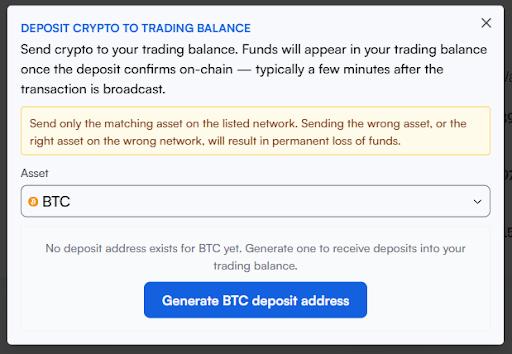
3. Select the Deposit Crypto button.
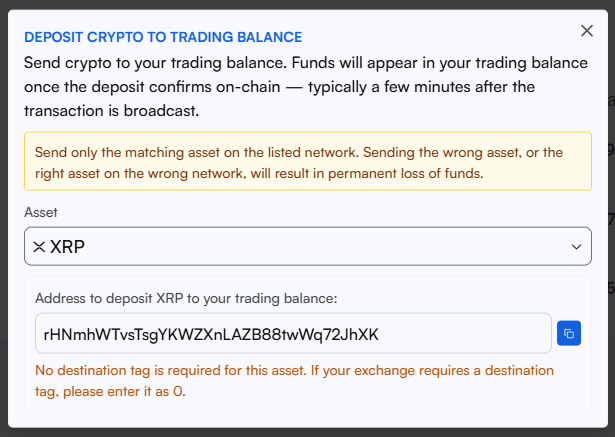
4. Select the asset from the dropdown list and generate the deposit address for the asset you wish to deposit.
5. Send the crypto from your external wallet or exchange to that address.
6. Wait for the transaction to confirm on-chain.
Once confirmed, the asset will appear in your Lantern trading and custody tabs and will also be available in your transaction history.
Please make sure you are sending the correct asset on the correct network. Sending unsupported assets or using the wrong network may result in a loss of funds.
7. How to Deposit Cash
Users can now deposit cash into their Lantern USD balance through their existing connected bank account.
At a high level:
1. Log in to Lantern.
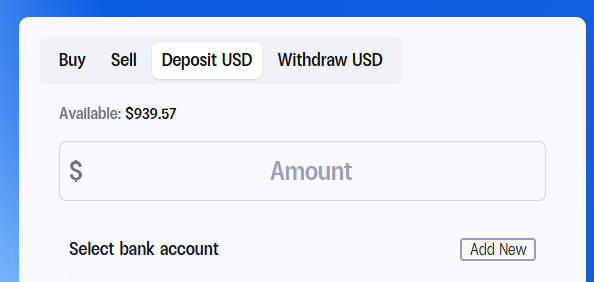
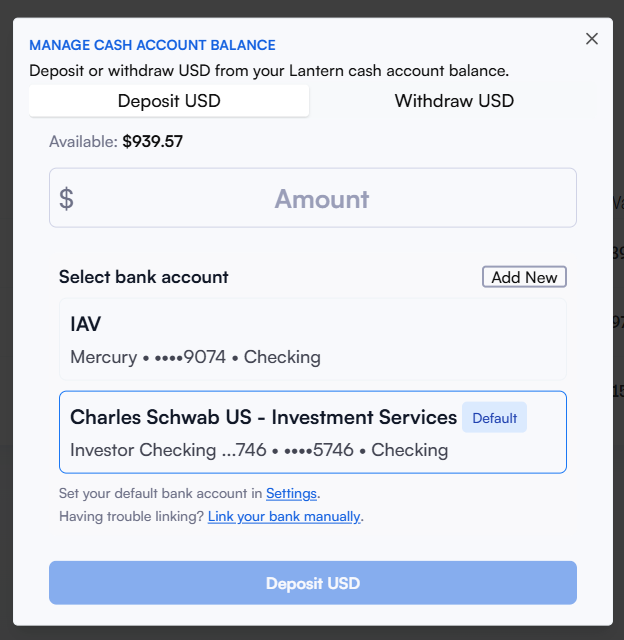
2. Go to your Trade or Custody tab. If you are on the Trade tab, select “Deposit USD” and enter an amount. If you are on the Custody tab, select “Manage USD” to deposit funds.
3. Select your connected bank account.
4. Review and confirm the deposit.
Once the deposit is complete, the USD balance can be used for trades or applied toward loan payments.
Important: Please note that Lantern is not a bank account and funds held with Lantern are not FDIC insured.
Trade tab:
Or select “Manage USD” through the Custody tab:
8. How to Buy Crypto
Users can buy supported crypto assets directly from their Lantern trading balance.
At a high level:
Log in to Lantern.
Go to the Trade tab.
Select the crypto asset you want to buy from the dropdown list.
Enter the amount you want to purchase. You can also choose a percentage of the amount of funds you want to use (e.g. 25%). In addition, you can toggle between buying a dollar amount or a token amount.
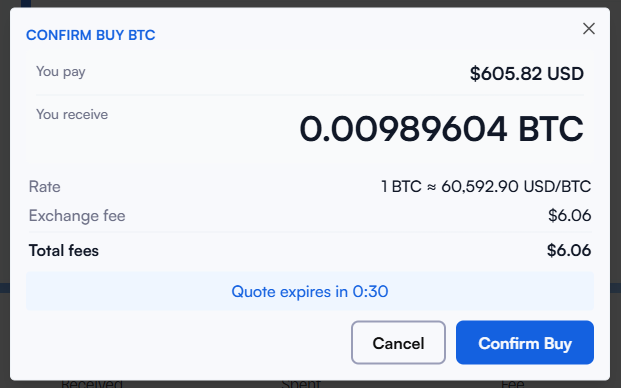
Review the quoted price, fees, and final trade details in the confirmation modal. You’ll have ~30 seconds to approve the quote.
Confirm the transaction.
Once the purchase is complete, the purchased asset will appear in your Lantern trading balance.
Note: If you have recently deposited cash and used it to purchase crypto, you will need to wait 3 days before moving the crypto to an external wallet address. This allows your bank transfer to settle.
9. How to Sell Crypto
Users can sell supported crypto assets directly inside Lantern.
At a high level:
Log in to Lantern.
Go to the Trade tab.
Select the crypto asset you want to sell from the dropdown list.
Enter the amount you want to sell. You can also choose a percentage of the amount of funds you want to use (e.g. 25%). In addition, you can toggle between selling a set dollar amount or a token amount.
Review the quoted price, fees, and final trade details in the confirmation modal. You’ll have ~30 seconds to approve the quote.
Confirm the transaction.
After the sale is complete, the proceeds will be reflected in your USD balance and can be withdrawn to your bank account. If your bank supports real-time payments, withdrawals may arrive within minutes.
10. How to Use USD Toward Loan Payments
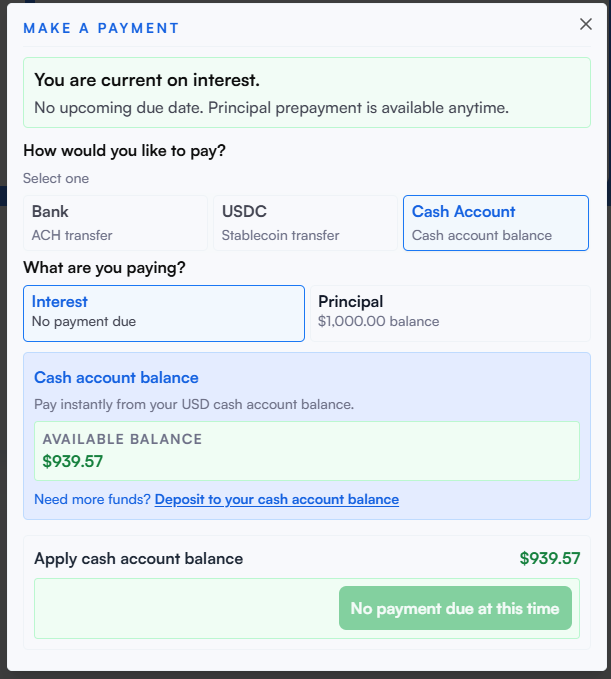
Users can apply USD held in their Lantern trading balance toward Lantern loan payments, including principal or interest.
At a high level:
Log in to Lantern.
Go to your Loan tab.
Select the Make Payment button.
Select the Cash Account option as the source under “How would you like to pay?”.
Enter the payment amount.
Review and confirm the payment.
This gives users more flexibility to manage cash, loan payments, and trading activity from the same Lantern account.
11. How to Move Funds Between Trading and Loans
Users can move funds between their trading wallet and loan account.
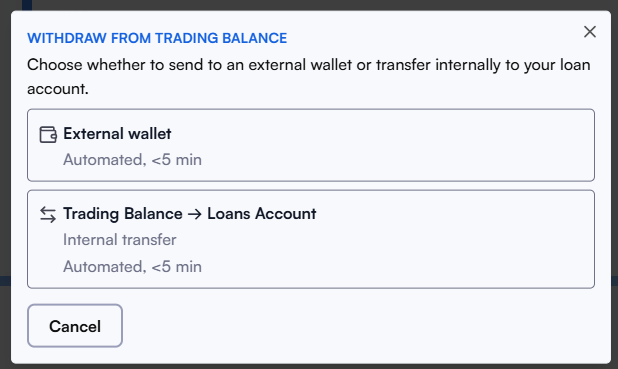
Trading Balance -> Loan Account: Transfers from trading to loans are designed to be fast and can be useful for adding collateral or taking out a new loan.
To move from your Trading balance to your Loans account, select “Withdraw Crypto” from the Trade tab. Then select “Trading Balance -> Loans Account.” Your address will be available if you have an existing Loans account. If you do not have an existing Loans account, go to the Loans tab of your account and create an application for a loan against the asset you wish to deposit. This will create the Loans wallet address in the background.
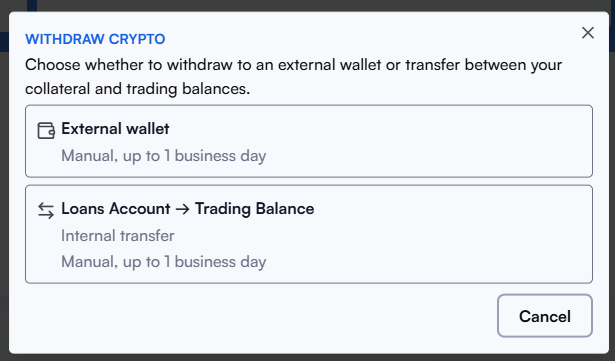
Loan Account -> Trading Balance: Transfers from loans to trading involve BitGo custody flows and may take more time. Timing can depend on BitGo processing, network activity, approvals, and operational review.
To move from your Loans account to your Trading balance, select “Withdraw” from the Loans tab. Then select “Loans Account -> Trading Balance.” Your address will be available if you have an existing Trading account. If you do not have an existing Trade account, go to the Trade or Custody tab of your account and generate the address of the asset you wish to transfer. This will create the Trade and Custody wallet address. Now when you go back to the Loans tab and select “Loans Account -> Trading Balance” you will see your generated address already populated.
We are actively working to improve the speed of transfers from BitGo while keeping strong security controls in place, and we expect to have an update for users soon. Transferring from Trading is already automated and works fast.
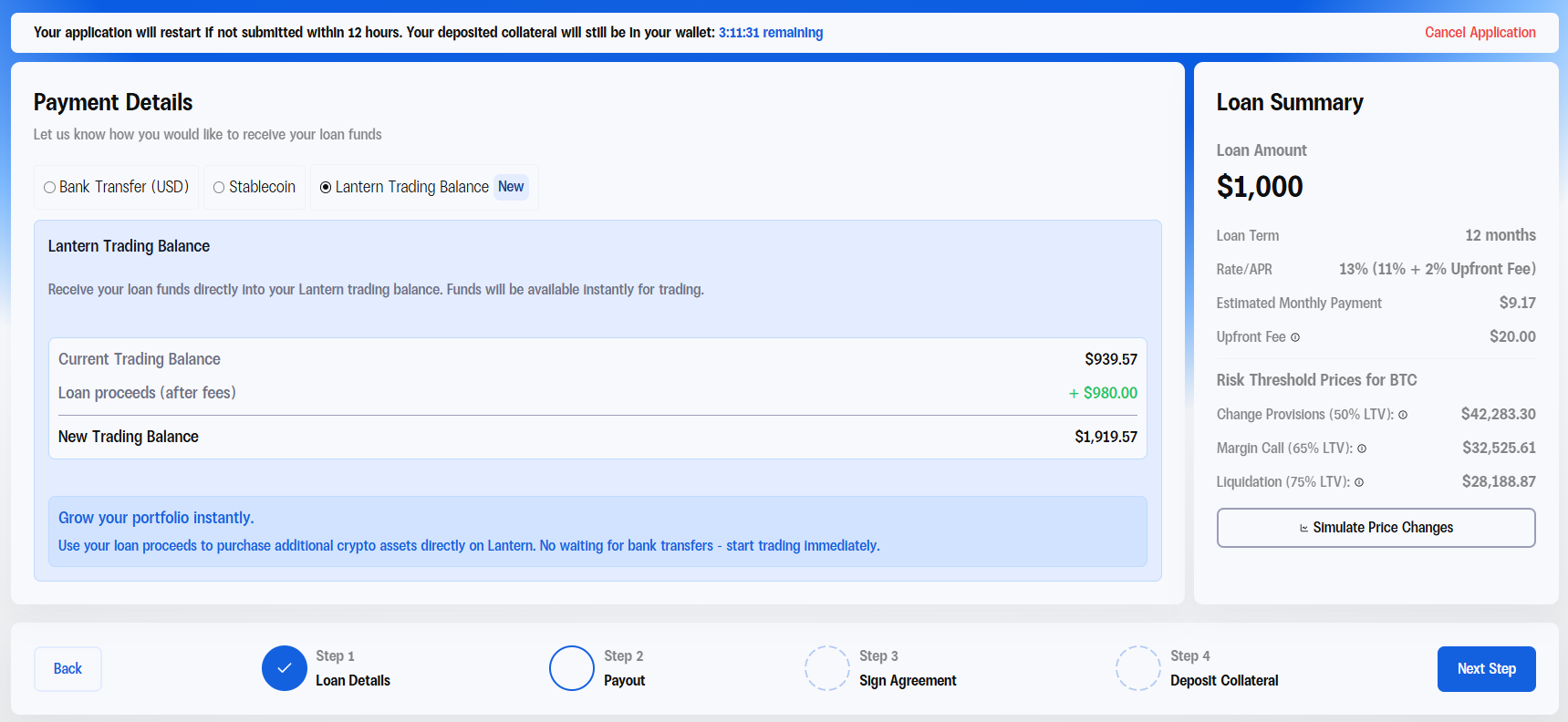
12. How to Receive Loan Proceeds Into Your Trading Balance
Users can choose to receive loan proceeds directly into their Lantern trading balance. This can reduce the need to send funds out to an external account and then back into Lantern.
When users take out a loan, they will see a new payout option in Step 2 that lets them send loan proceeds directly to their Lantern cash account.
Loan funds sent to the trading balance are available immediately in your Lantern cash account upon loan submission. If you decide not to use the funds for trading, you can withdraw them to your bank account or use them toward interest or principal on your other Lantern loans.
13. Support and Feedback
If you have any issues, reach Lantern customer support at [email protected] or by call/text at 415-365-0100.
Lantern trading is new, and we are actively collecting feedback. If something does not look right or does not work as expected, please let us know so our team can investigate and get it fixed quickly.
14. Important Disclosures
Trading involves risk.
Crypto prices can be volatile.
This is not financial advice.
Custody for trading assets is separate from loan collateral custody.
Lantern is not a bank, and funds held with Lantern are not FDIC insured.
Users should review all applicable terms before trading.