13 Oct 2026 · 3 min read
How To Sell Your Collateral On Lantern
Sell Collateral lets you sell the crypto backing your Lantern loan and apply the proceeds to what you owe. This guide covers choosing an amount, reviewing the quote, confirming the sale, and tracking it to completion.
Sell Collateral lets you sell some or all of the crypto backing your loan and put the proceeds toward what you owe. If you sell all of it, anything left after the payoff goes to your Lantern Trading balance.
You'll need access to Lantern Trading to use it. Before you start, decide whether you want to pay down part of the loan or close it out.
Step 1: Open your loan
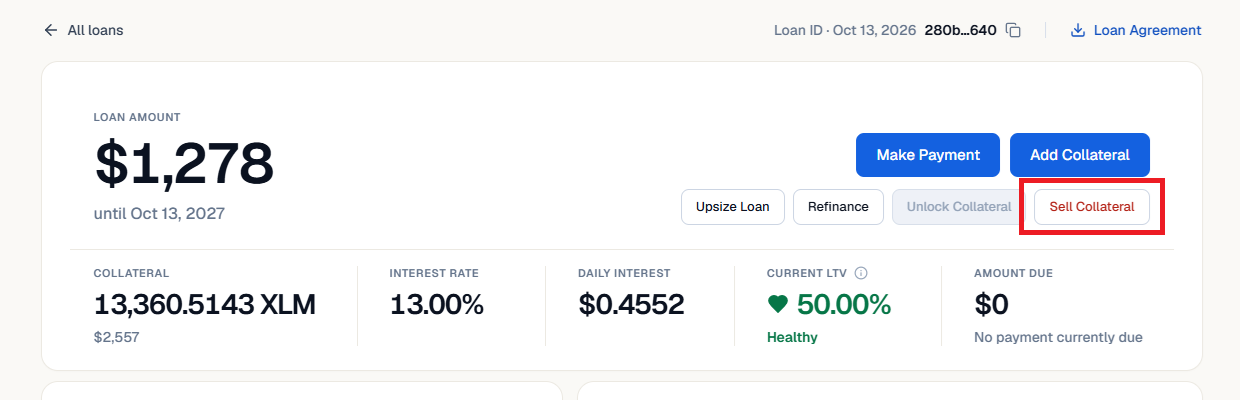
Log into Lantern and open the loan you want to pay down from the Loans tab. If you have more than one loan, check the loan ID at the top of the page.
Click Sell Collateral. It sits in the row of loan actions under Make Payment and Add Collateral.
Step 2: Choose how much to sell
Under "How much do you want to sell?", type a dollar amount or tap a shortcut:
25%, 50% or 75% of your outstanding balance
Payoff for the full amount needed to close the loan
Below the amount, Lantern shows the estimated collateral to send and the market price it's using.
You can sell up to $250,000 per sale, and up to $500,000 per month for each asset. If you want to sell more than that, contact our support team and we can adjust your limit.
Keep an eye on the left panel. "Your loan after" shows your principal, collateral and LTV before and after the sale, plus a bar showing where your new LTV lands.
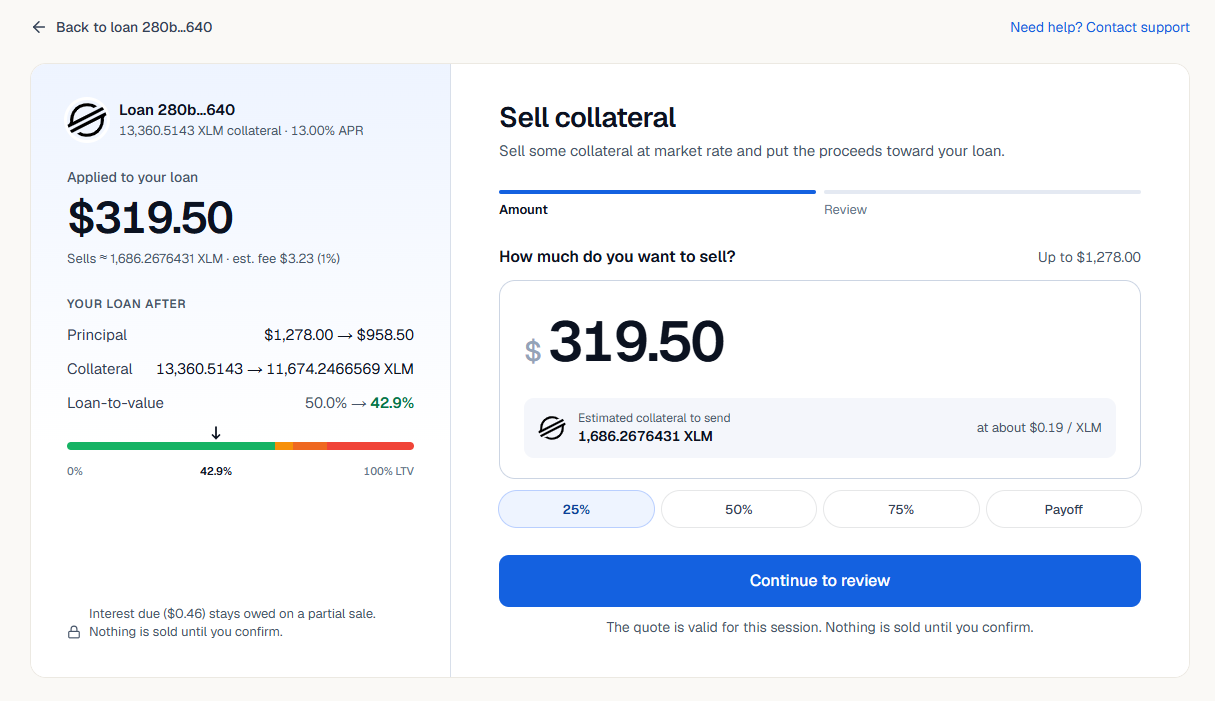
On a partial sale, any interest currently due stays owed. The left panel shows the amount.
Step 3: Decide whether to sell everything (optional)
If you picked Payoff, you'll see a toggle: Sell all my [asset].
Turn it on to sell all of your collateral. Lantern pays off your loan first, then credits whatever's left to your Lantern Trading balance. You can withdraw that balance to your bank, so there's no need to move leftover collateral over yourself.
Leave it off if you only want to sell enough to pay off the loan.
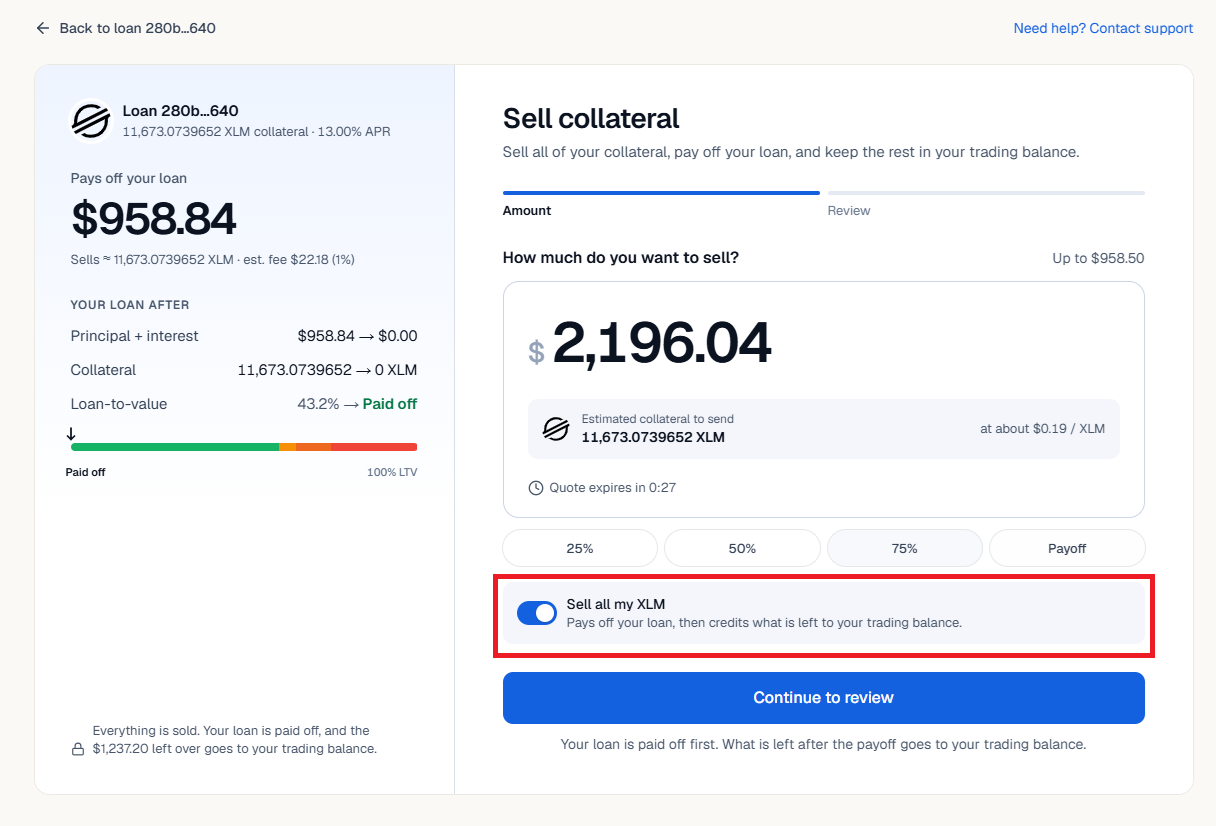
When you're selling everything, the quote runs on a short countdown. Review it before the timer runs out.
Click Continue to review.
Step 4: Review the quote
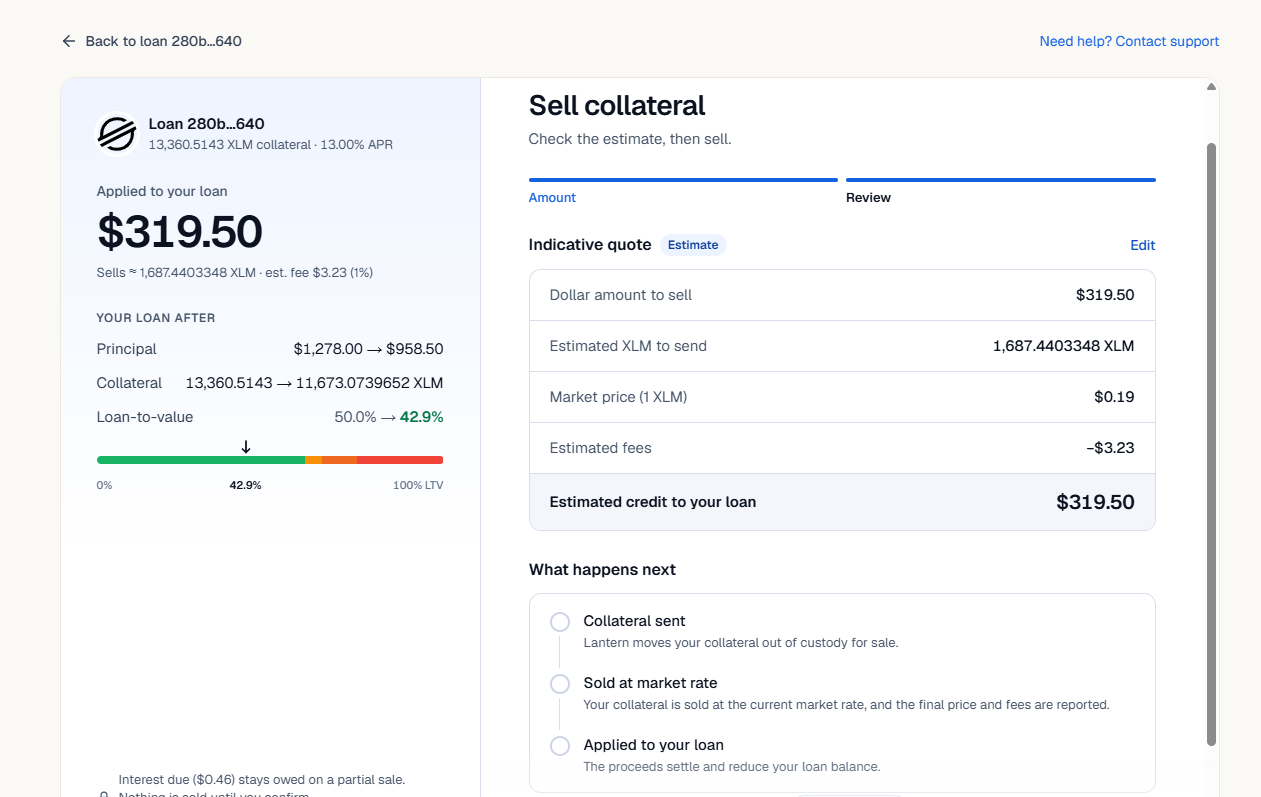
The review screen shows an indicative quote:
Dollar amount to sell
Estimated crypto to send
Market price
Estimated fees (1%)
Estimated credit to your loan
Need to change the amount? Click Edit in the top right of the quote.
Step 5: Confirm the sale
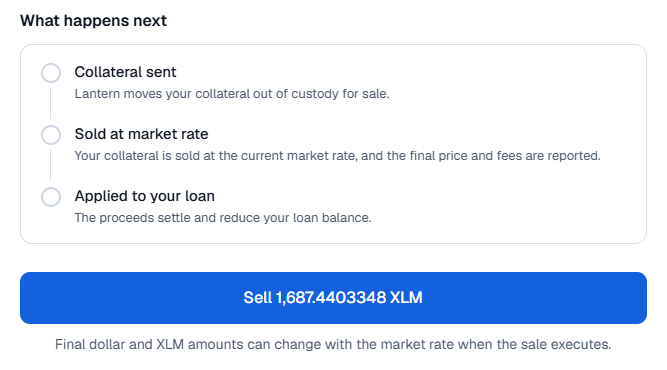
Scroll down to "What happens next." It lists the 3 stages your sale goes through: collateral sent, sold at market rate, then applied to your loan.
The button underneath shows exactly how much you're selling, for example Sell 1,687.4403348 XLM. Press it when you're ready. Nothing is sold before this point.
Step 6: Track the sale
You'll land on a "Sale requested" screen with a 3-step tracker: Sale requested, Collateral sent, then Sold and applied to your loan.
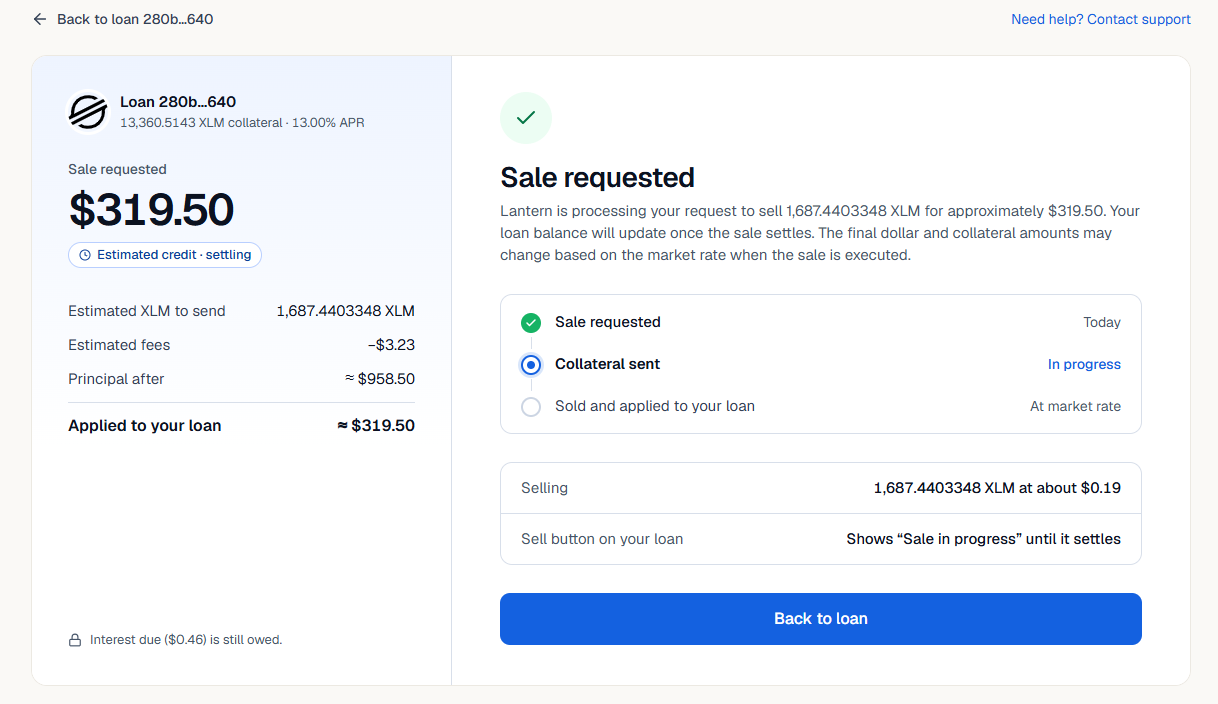
Click Back to loan. Until the sale settles, the Sell Collateral button reads "Sale in progress," and you can't start another sale.
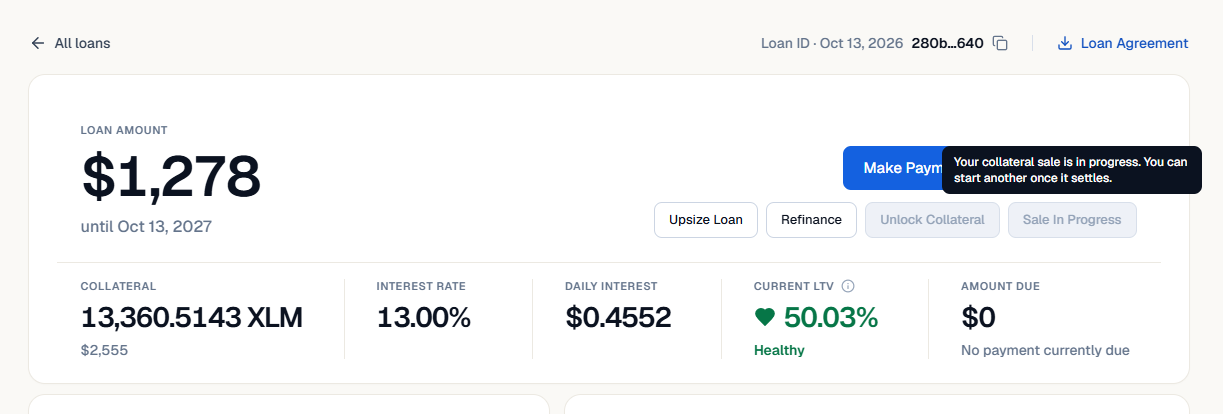
Once it settles, check your loan page for the updated principal, collateral and LTV. If you sold everything, check your Lantern Trading balance for the leftover cash.
Before you sell
The final dollar and crypto amounts depend on the market rate when the sale executes. Lantern reports the final price and fees after the sale.
Sell limits are $250,000 per sale and $500,000 per month for each asset. For larger sales, contact support to adjust your limit.
Paying down part of your loan leaves the rest of your loan obligations in place. Keep track of any payments still due.
Selling crypto may have tax consequences. Consider your own situation before you confirm.
Need a hand?
If you don't see Sell Collateral on your loan, or a result doesn't look right, call or text our team at (415) 365-0100.